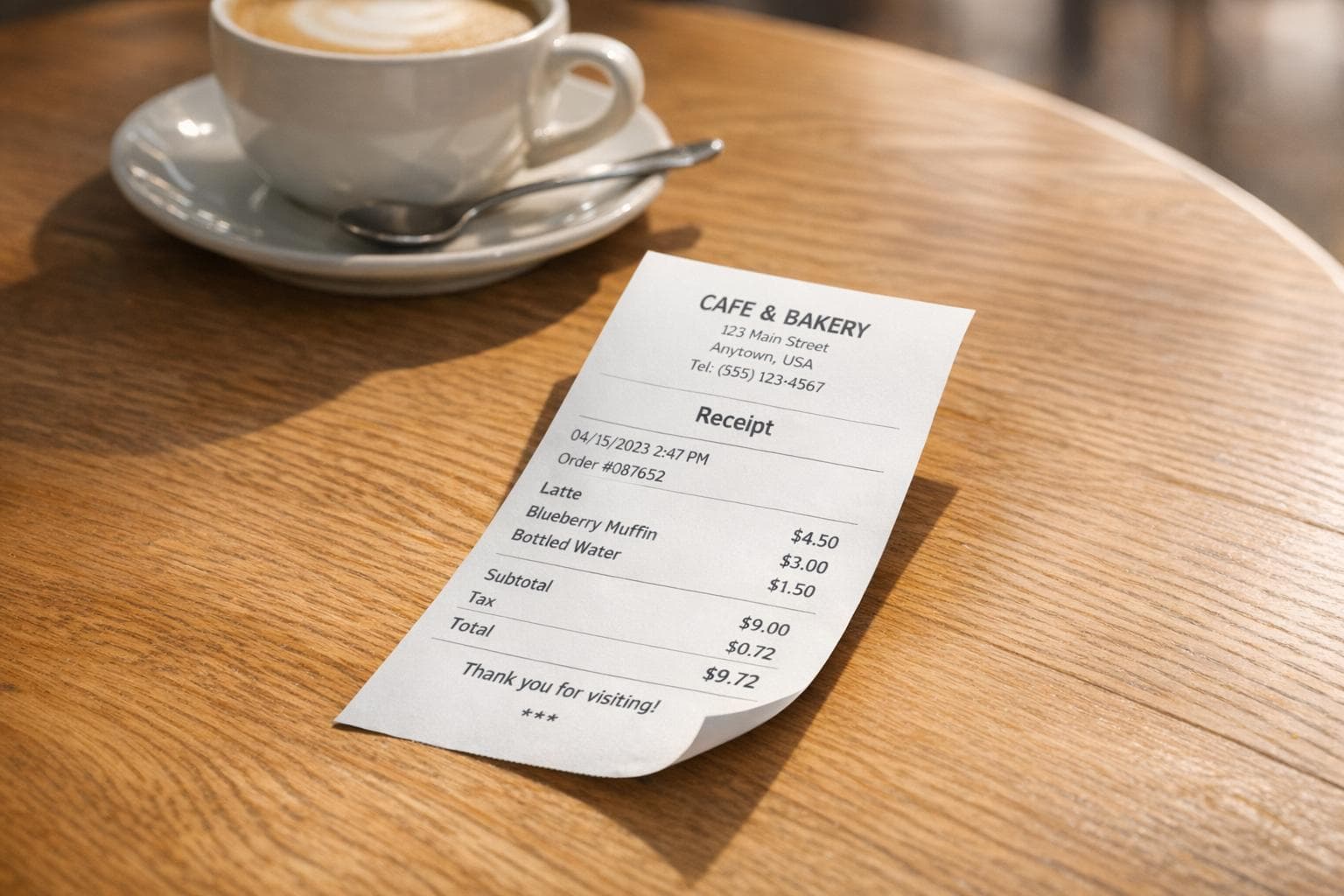
AI Receipt Placement: Put Your Receipt in Any Photo Instantly
Need a receipt but don’t have one handy? AI tools now let you create realistic receipt images in seconds - and even embed them into photos for a natural look. Whether for expense reports, tax filings, or lost documentation, tools like Receipt Generator simplify the process. Just describe your receipt (e.g., "Dinner for two, $85"), and the AI generates it with accurate details, including business names, taxes, and totals.
The standout feature, AI Place in Scene, allows you to upload a photo (like a desk or table) and seamlessly integrate the receipt into it, adjusting lighting and perspective for realism. This tool is perfect for freelancers, small business owners, or anyone needing polished receipts without manual effort.
You can use the free plan for occasional needs or upgrade to the Pro plan ($9.99/month) for watermark-free downloads and extra features. Start creating receipts in under five seconds and streamline your workflow today.
What is the AI Place in Scene Feature?
The AI Place in Scene feature lets you seamlessly embed a digital receipt into any photo - whether it’s a desk, countertop, or table - while adjusting the perspective and lighting to make it look like it belongs there.
Using generative models, the system creates a detailed receipt layout that includes merchant information, line items, taxes, and totals. It even replicates realistic textures and thermal print fonts. BankGPT describes this as a "pixel-perfect presentation" that ensures precise alignment, font consistency, and spacing.
Once the receipt is integrated into your image, a browser-based editor allows you to fine-tune every detail - like names, dates, addresses, and logos - so it perfectly fits the context of your photo. This process shifts your role from painstaking manual adjustments to simply reviewing and refining the final result.
For small business owners running pop-up shops or market stalls, this feature makes it easy to create professional-looking receipts without needing a full POS system. Freelancers and contractors can also use it to recreate lost receipts for expense reports or tax purposes, producing images that look freshly printed. This precise and user-friendly tool simplifies receipt customization, as outlined in the next step-by-step guide.
sbb-itb-2232899
How to Use AI Receipt Placement: Step-by-Step Guide
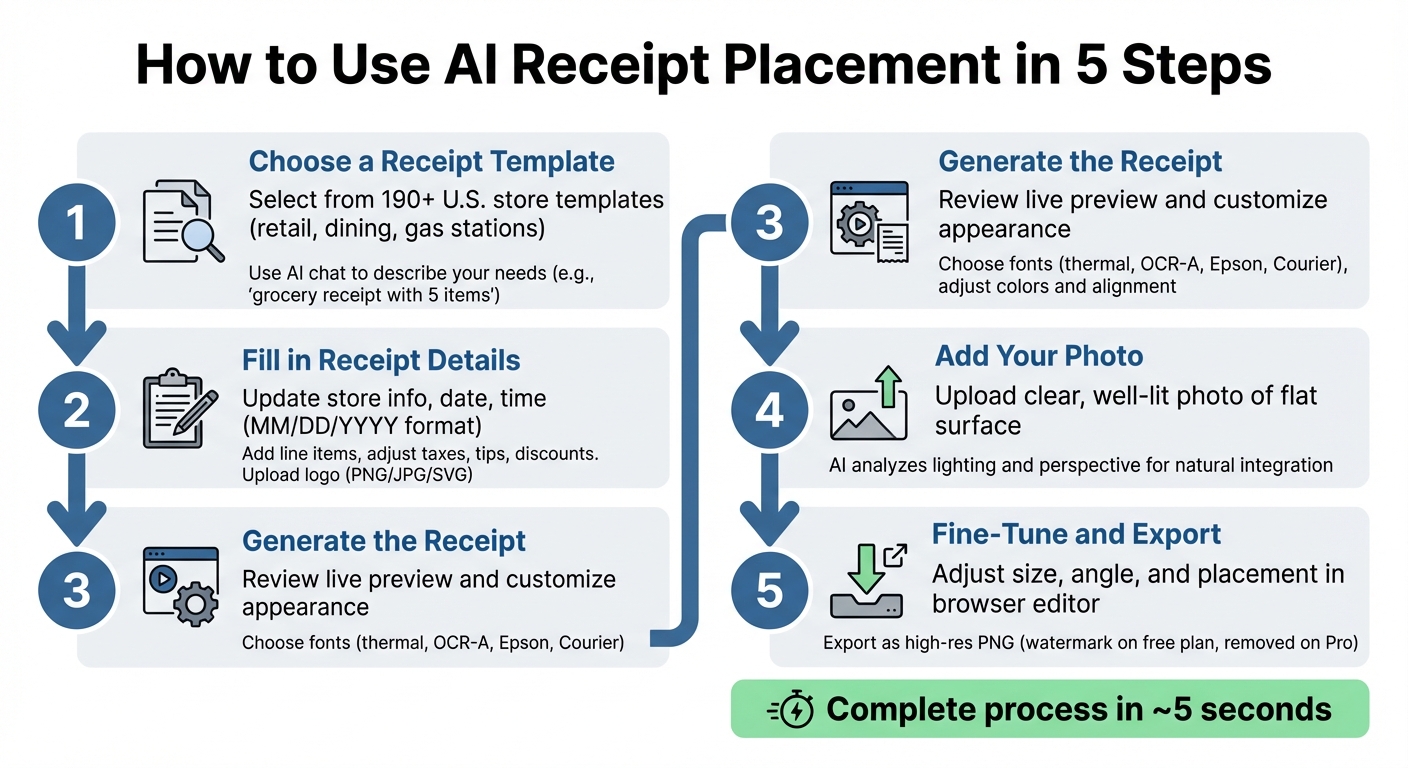
5-Step AI Receipt Placement Process Guide
Here's a simple walkthrough to help you create and integrate a realistic receipt image using Receipt Generator.
Step 1: Choose a Receipt Template
Start by opening Receipt Generator in your browser. You’ll find over 190 templates from U.S. stores and restaurants, sorted by type - retail, dining, gas stations, and more - making it easy to pick the right format.
Not sure which one to use? The built-in AI chat can help. Just describe what you need, like "grocery receipt with 5 items", and it’ll suggest the best layout, font, and structure for your receipt.
"Think of the AI as a first draft that gets you 90% of the way there. You just clean up the last 10%." - ReceiptWorks.com
For specialized needs, such as cash transactions or donations, specific templates include fields like "amount tendered" or "tax-exempt status."
Step 2: Fill in Receipt Details
Click on any field to make edits. Update the store name, address, phone number, email, and tax ID to match your transaction. Set the date and time in the MM/DD/YYYY format.
Add or remove line items by entering details like quantity, description, and unit price for each product or service. Subtotals update automatically, but you can manually adjust tax rates, tips, discounts, and totals. For cash payments, input the tendered amount, and the tool will calculate the change.
Choose a payment method - cash, credit, debit, or check. If using a card, select the type (Visa, Mastercard, etc.) and add the last four digits. You can upload a logo (PNG, JPG, or SVG), include barcodes or QR codes, and even add custom footer notes like return policies.
Step 3: Generate the Receipt
Check the live preview to ensure everything looks right. Confirm that the tax and totals align with your desired figures.
You can customize the look with fonts like thermal printer styles (OCR-A or Epson) for retail or restaurant receipts, or typewriter fonts like Courier for formal invoices. Adjust text color, receipt width, and alignment to match your preference.
Once done, you’re ready to embed your receipt into its background.
Step 4: Add Your Photo
After generating the receipt, it’s time to place it in a photo. Use the AI Place in Scene feature to upload a clear, well-lit image of a flat surface. The AI will analyze the lighting and perspective to integrate the receipt naturally. Images with consistent lighting - like window light or overhead fixtures - work best.
Step 5: Fine-Tune and Export
The AI automatically positions the receipt, aligning it with the surface’s perspective and lighting. You can adjust its size, angle, and placement using the browser editor.
For added realism, the system applies subtle shadows and adjusts the angle to match the surface. You can even add digital imperfections or grain to make the receipt more convincing.
"Ultra-realism isn't about one trick. It's about stacking small cues until the illusion holds." - Tyler Smith, Author, Curious Refuge
When you’re happy with the result, export the image as a high-resolution PNG. The free version includes a watermark, but upgrading to the Pro plan removes it and gives you extra AI credits for more customization options.
Why Use AI Receipt Placement? Key Benefits
Quick and effortless receipt creation. In just about five seconds, you can generate a receipt without the hassle of manual form filling. Simply describe the transaction in plain English - like the store name, address, tax ID, items, prices, and tax rates - and the AI takes care of everything. It handles calculations, formatting, alignment, and layout automatically.
Improved precision over time. AI tools boast an impressive accuracy rate of over 99%. They handle subtotals, tax rates, tips, and discounts with ease, significantly reducing the chance of mistakes. This level of precision ensures that each receipt meets professional standards.
Polished, professional appearance. Many payroll processors and HR departments require receipts to follow specific formats. The AI generates receipts with realistic fonts, proper alignment, and authentic textures, giving them the look of genuine point-of-sale documents.
Easily recover missing records. Lost receipts for expenses, taxes, or audits are no longer a headache. Freelancers, small business owners, and landlords can quickly recreate professional receipts for various transactions, saving time and stress.
User-friendly with minimal effort. Thanks to natural language processing, you only need to describe what you need - like "coffee shop receipt for $5.50" - and the AI generates a polished draft in seconds. You can adjust details later if necessary.
These features make AI receipt placement a smooth and efficient solution, ensuring every receipt looks authentic and professionally integrated into your chosen image.
Free vs. Pro Plan: Which Plan Should You Choose?
Receipt Generator makes it simple to create receipts, offering plans tailored for both casual users and those with higher demands.
The free plan is straightforward - no signup required. You can manually edit receipt details, download them with a watermark, and even use the AI chat feature, though it has a limited number of messages per month. If you only need a few receipts occasionally, this plan is a convenient option for basic use.
The Pro plan, on the other hand, is perfect for those who need to generate 30–50+ receipts each month or want watermark-free downloads. Priced at $9.99 per month (or $69.99 per year, saving 42%), it includes unlimited watermark-free exports, higher AI chat message limits, and the ability to save receipts and custom templates. This plan is especially useful for small business owners needing organized, audit-ready documents or freelancers working with multiple clients.
Important Note: The AI chat feature doesn’t support direct logo uploads. To add a logo, first generate your receipt using AI, then switch to the Editor tab to upload the logo manually.
Comparison Table
| Feature | Free Plan | Pro Plan |
|---|---|---|
| Price | $0 | $9.99/month or $69.99/year |
| AI Messages | Limited monthly allowance | Increased message limits |
| Watermark | Yes | No |
| Templates | 190+ store templates | 190+ store templates |
| Custom Logo | Manual upload only | Manual upload only |
| Save Receipts | No | Yes |
| Ideal For | Occasional users, one-off needs | High-volume users, businesses |
Pick the plan that matches your receipt creation needs and enjoy the flexibility Receipt Generator provides.
Conclusion
Receipt Generator's AI Place in Scene feature takes the hassle out of creating receipts, turning what used to be a time-consuming chore into something you can finish in seconds. By seamlessly integrating receipts into any scene, it adds a realistic touch that improves both documentation and presentation.
This tool can save up to 97% of the time typically spent on data entry compared to older methods. Tasks that might have taken several minutes can now be completed almost instantly. For small business owners juggling multiple responsibilities or anyone needing quick documentation, this time savings can make a big difference.
With both free and Pro plans available, the tool offers flexibility to suit occasional users and frequent users alike. Whether you're tracking expenses, preparing presentation materials, or managing business records, this tool meets your needs without requiring you to master complicated software or spend money on pricey design tools.
Try the free version today to see how AI receipt placement can simplify your workflow, and upgrade as your needs expand.
FAQs
Is AI receipt placement legal to use?
The legality of using AI to generate receipts depends entirely on the purpose. If it's done to create or modify receipts for fraudulent activities, it's illegal. This includes actions like falsifying expense claims or tax documents.
On the other hand, using AI-generated receipts for legitimate reasons - such as for documentation, presentations, or creative projects - is typically allowed. Just make sure your intent complies with relevant laws and ethical standards.
How do I make the receipt look realistic in my photo?
To create a receipt that looks authentic, pay close attention to detail and presentation. Include clear and specific information such as the store name, itemized purchases, prices, and the date. This ensures the receipt has the structure and content of a real one.
Next, focus on formatting. Adjust fonts, layout, and alignment to match typical receipt styles. Use a high-resolution image to ensure clarity, and make sure the receipt’s appearance aligns with the lighting, perspective, and background of the photo it’s being integrated into. By combining these elements, you can achieve a natural and believable result.
What image types and export formats are supported?
Supported image formats for receipt input are JPEG and PNG. When it comes to exporting, you can choose between PNG and PDF, making it simple to create and share your receipts.