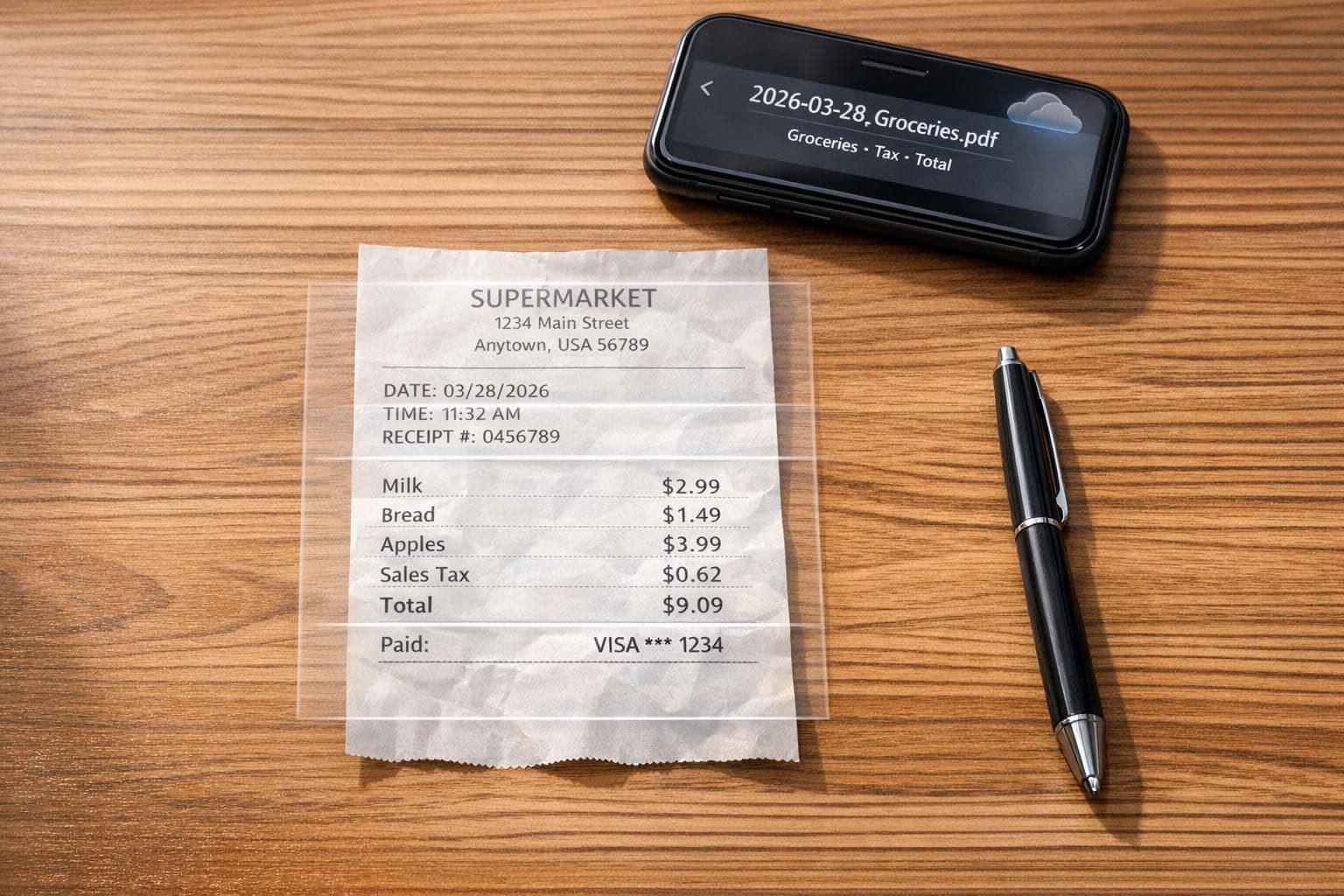
How to Digitize Paper Receipts for Better Record Keeping
Digitizing paper receipts simplifies record-keeping, saves time, and reduces the risk of losing critical financial documents. Here's what you need to know:
-
Why Digitize?
- Paper receipts fade quickly and can be lost or damaged.
- Digital receipts are IRS-compliant and accepted as legal records since 1997.
- Poor record-keeping can result in missed deductions or penalties during audits.
-
Tools You Can Use:
- Mobile Scanning Apps with OCR: Apps like Adobe Scan and Tiny Scanner convert receipts into searchable PDFs.
- Receipt Management Software: Tools like Expensify and QuickBooks organize, categorize, and integrate receipts with accounting systems.
- Receipt Generators: Create digital replicas for lost or faded receipts.
-
Steps to Digitize Receipts:
- Scan receipts immediately after purchase.
- Use OCR tools to extract key details (e.g., merchant, date, amount).
- Recreate missing or damaged receipts with Receipt Generator.
- Save and organize files in a clear naming format (e.g.,
2026-03-28_Store_$50.00.pdf) and store them securely in the cloud.
-
Organization Tips:
- Set up logical folder structures (e.g., by year or category).
- Use cloud storage solutions like Google Drive or Dropbox for easy access and backups.
Switching to digital receipts ensures clear, permanent financial records, making audits, tax preparation, and expense tracking stress-free.
Tools for Digitizing Receipts
Having the right tools can turn a messy stack of paper receipts into a well-organized, searchable digital archive.
Mobile Scanning Apps with OCR
Apps like Adobe Scan and Tiny Scanner leverage Optical Character Recognition (OCR) technology to transform receipts into searchable PDFs. OCR extracts key details - such as merchant names, dates, amounts, and currencies - minimizing the need for manual data entry. Kristina Lauren from Zapier highlights the importance of accuracy in these tools:
"An OCR app needs to be accurate - no one wants to waste time correcting errors".
Tiny Scanner is praised for its consistent OCR results, while Adobe Scan offers a free version with premium features for $9.99 per month. These apps often include smart features like automatic document detection, cropping, and focus adjustments. Additionally, many work offline, allowing you to capture images without internet access and process them later. For best results, place receipts on a flat surface with good lighting, and for longer receipts, take multiple shots to capture all the details.
Once scanned, these files can be seamlessly integrated into receipt management software for better financial organization.
Receipt Management Software
Receipt management platforms go beyond digitization by categorizing and organizing receipts for detailed financial tracking. For instance, Expensify uses its SmartScan technology to process paper receipts in under a minute, automatically matching them to related credit card transactions and reducing duplicate entries. With over 15 million users and thousands of positive reviews, Expensify is a popular choice for individuals and businesses alike.
QuickBooks offers a mobile app feature that allows users to snap photos of receipts, which can then be linked to new or existing transactions. This platform integrates with major accounting tools like Xero, NetSuite, and Sage Intacct, making it a versatile option. Similarly, FreshBooks includes a Digital Bills and Receipt Scanner that captures essential details like totals, taxes, and merchant information, while also enabling team members to upload receipts. These tools often auto-categorize expenses into tax-ready groups (e.g., meals, travel, office supplies), with pricing starting at $5 per user per month for Expensify’s Collect plan and around $30 per month for QuickBooks Online.
These platforms not only organize your receipts but also ensure accurate and accessible financial records.
Receipt Generator for Digital Replicas
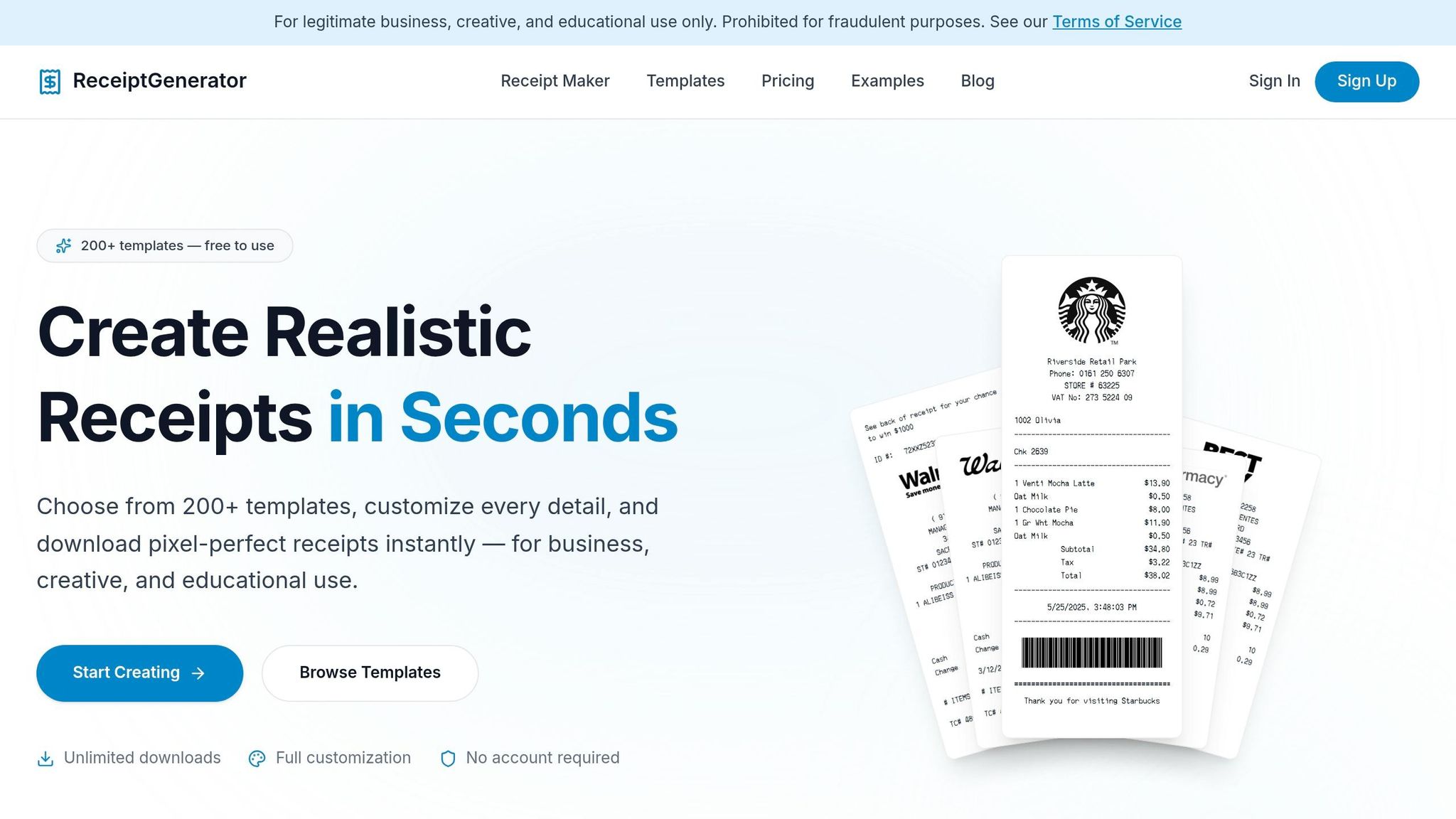
Lost, damaged, or faded receipts? Receipt Generator allows you to recreate them digitally. Instead of scanning existing receipts, this tool uses customizable templates from over 190 well-known stores and restaurants. Users can edit details like store names, line items, prices, taxes, and payment methods to match the original transaction. The final replica can then be exported as a high-resolution PNG.
The tool also offers an AI-powered "Place in Scene" feature, which creates realistic images of the receipt on surfaces like desks or counters. This eliminates the need for a physical receipt printer. It’s especially helpful for dealing with thermal paper receipts, which often fade within weeks, long before tax season arrives. By complementing OCR tools, Receipt Generator ensures you have a reliable visual record for digital archiving.
sbb-itb-2232899
How to Digitize Paper Receipts
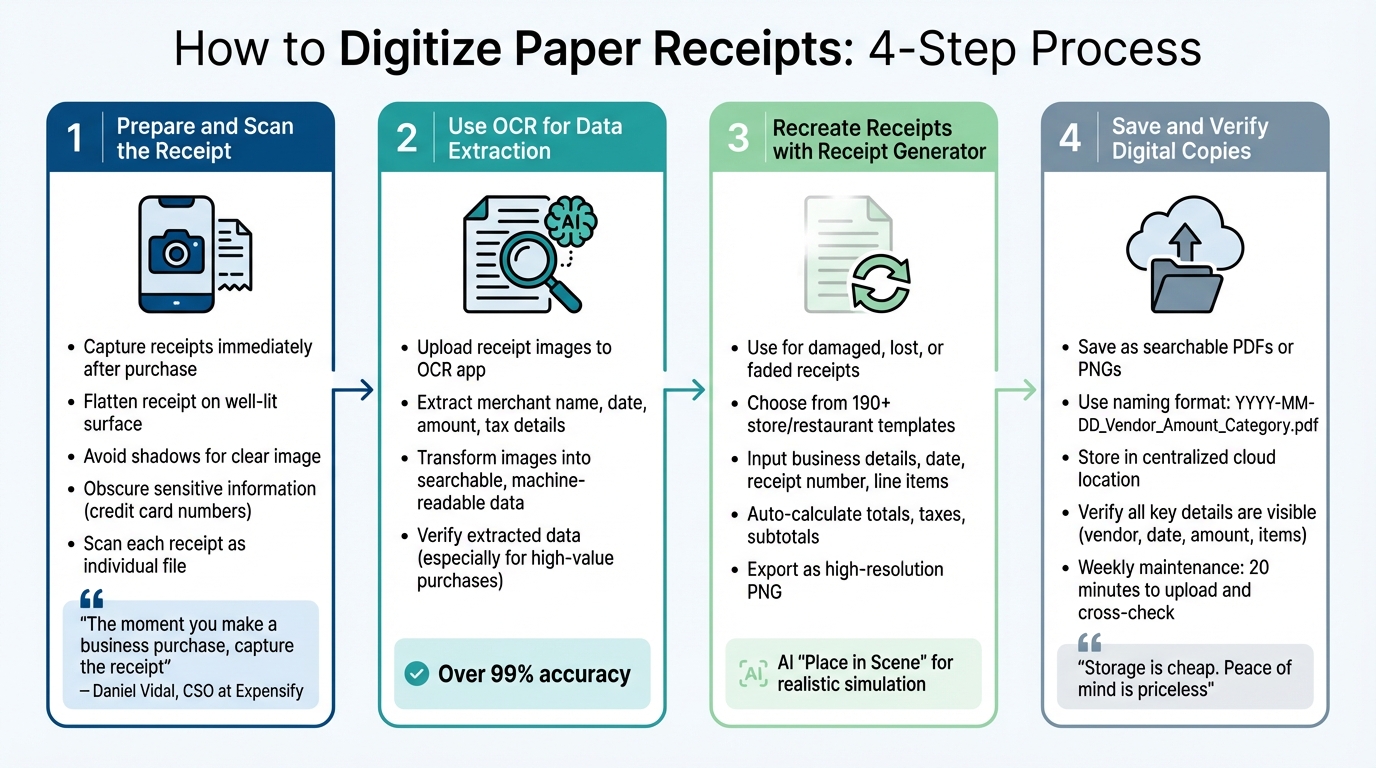
4-Step Process to Digitize Paper Receipts for Better Record Keeping
Turning paper receipts into digital records doesn’t have to be complicated. With the right tools and a simple plan, you can streamline the process and keep your records organized.
Step 1: Prepare and Scan the Receipt
Start by capturing receipts right after making a purchase. As Daniel Vidal, CSO at Expensify, emphasizes:
"The moment you make a business purchase, capture the receipt".
This is especially important because thermal receipts fade quickly over time.
Before scanning, flatten the receipt and place it on a well-lit surface to avoid shadows and ensure a clear image. If the receipt contains sensitive information, such as full credit card numbers, make sure to obscure or remove those details. Scan each receipt as an individual file to improve the accuracy of data extraction in the next step.
Step 2: Use OCR for Data Extraction
After scanning, upload the receipt images to an OCR (Optical Character Recognition) app. These tools extract key information like merchant names, dates, amounts, and tax details. Modern OCR technology can transform receipt images into searchable, machine-readable data. Some advanced tools even use natural language processing to differentiate between totals, taxes, and other details.
While OCR tools can achieve over 99% accuracy, it’s still a good idea to double-check the extracted data, especially for high-value purchases or tax-related transactions.
Step 3: Recreate Receipts with Receipt Generator
If a receipt is damaged, lost, or faded, you can use a Receipt Generator to create a digital replacement. This tool offers over 190 templates based on common store and restaurant receipts. Simply input details like the business name, address, date, receipt number, and line items. The tool will calculate totals, taxes, and subtotals automatically. For added authenticity, you can use thermal-style fonts.
Once completed, export the recreated receipt as a high-resolution PNG. For an extra touch, the AI-powered "Place in Scene" feature can simulate the receipt on surfaces like desks or counters, eliminating the need for a physical printer.
Step 4: Save and Verify Digital Copies
Save your receipts as searchable PDFs or PNGs to make them easy to locate later. Stick to a consistent naming format like YYYY-MM-DD_Vendor_Amount_Category.pdf to simplify searches. Store all your digital receipts in one cloud-based location to create a centralized, reliable record system.
Make sure each digital receipt is clear and includes all key details - vendor name, date, amount, and purchased items. Receipts with these elements are fully accepted by the IRS. To stay on top of things, set aside 20 minutes weekly to upload any missing receipts and cross-check them with your bank transactions. As the Receipt Maker Blog wisely notes:
"Storage is cheap. Peace of mind is priceless".
Once your receipts are digitized and verified, you’re ready to organize and store them securely.
How to Organize and Store Digital Receipts
Once you've verified your digital receipt copies, the next step is organizing them for easy access. A solid system not only saves time during tax season but also helps you stay prepared for audits. Fun fact: about 6 million taxpayers receive IRS audits or verification notices each year.
Create a Logical Folder Structure
Start by designing a folder structure that mirrors how you’d naturally search for receipts. For instance, small businesses might prefer a setup like EXPENSES > [YYYY] > [Expense Category]. Freelancers could use CLIENTS > [Client Name] > [Project Name], while households might find FINANCES > [YYYY] > [Category] more practical. The key is to avoid dumping all your receipts into one folder - it just creates chaos.
Here’s a quick guide to folder structures and file naming:
| User Type | Recommended Folder Structure | Example File Name |
|---|---|---|
| Small Business | EXPENSES > [YYYY] > [Expense Category] |
2026-03-14_OfficeDepot_$47.32.pdf |
| Freelancer | CLIENTS > [Client Name] > [Project Name] |
2026-02-15_Adobe_$54.99.pdf |
| Traveler | TRAVEL > [Trip Name - YYYY-MM] |
2026-03-20_Delta_Airlines_$341.10.pdf |
| Household | FINANCES > [YYYY] > [Category (e.g., Medical)] |
2026-01-10_CVS_Pharmacy_$22.50.pdf |
Once you've sorted out your folder structure, it’s time to centralize your files using a reliable storage solution.
Use Cloud Storage Solutions
Cloud storage platforms like Google Drive or Dropbox are perfect for keeping your receipts in one secure location. This approach ensures your files are accessible from any device and automatically backed up. To further protect your data, stick to the 3-2-1 backup rule: keep three copies of your receipts, use two different storage types (e.g., cloud and local hard drive), and store one copy offsite. For added peace of mind, Dropbox even offers a four-digit PIN for mobile access.
After securing your files, the next step is to adopt a consistent file naming system.
Consistent Naming Conventions
A standardized naming format, such as YYYY-MM-DD_Vendor_Amount_Category.pdf, makes finding receipts a breeze. This method ensures receipts are automatically sorted chronologically, regardless of your operating system. For example, a Walmart receipt from today might look like 2026-03-28_Walmart_$45.67_Groceries.pdf. Not only does this save time, but it also simplifies searches when you’re in a hurry.
Tips for Better Record-Keeping
Once your digital receipts are neatly organized, you can take your record-keeping to the next level with some advanced strategies.
Use AI Place in Scene for Realistic Replicas
Receipt Generator's AI Place in Scene feature offers a creative way to enhance your records. It allows you to create realistic images of your receipts placed on various surfaces - like a wooden desk, a marble countertop, or even next to products. All you need is a background photo, and the feature handles the rest, adjusting for lighting and perspective. This can be incredibly useful for situations like insurance claims, reimbursement requests, or portfolio projects where realistic proof of purchase is required. By integrating this visual documentation into your workflow, you can keep everything streamlined and professional without relying on a physical printer.
Integrate with Accounting Software
Digitizing receipts is just the beginning. By syncing them with accounting software, you can simplify expense tracking and create a seamless audit trail. Modern AI-powered scanners can extract key details - such as merchant names, dates, and total amounts - with over 99% accuracy. Even better, they can process a receipt and sync the data to your accounting platform in under 5 seconds. This eliminates the need for manual entry, significantly reduces errors, and ensures every receipt is matched with your bank or credit card statements automatically. For context, small business owners spend around 12 hours per month managing expenses - using integration tools can drastically cut this time.
Manual Scanning vs. App-Based Methods
Choosing between manual and app-based methods depends on your receipt volume and organizational needs. Here's a quick comparison:
| Factor | Manual Scanning/Filing | App-Based (AI) Methods |
|---|---|---|
| Processing Time | Minutes per receipt | Under 5 seconds |
| Data Accuracy | Prone to human error | High accuracy with AI |
| Searchability | Time-intensive manual search | Instant keyword or tag search |
| Integration | Requires manual entry | Automatic sync with accounting tools |
| Durability | Paper can fade or get lost | Permanent cloud storage |
While manual scanning might work for occasional users with only a few receipts, app-based methods are a game-changer for those handling multiple receipts regularly. They save time, improve accuracy, and make searching and organizing a breeze.
Conclusion
Switching to digital receipts not only safeguards your financial records but also makes managing your expenses much easier. Unlike thermal paper receipts that fade over time, digital copies remain clear and legible throughout the IRS retention period, offering a reliable backup for audits or lost documents. With millions of audits conducted annually, having well-organized digital records can save you from unnecessary stress.
Digital receipts also address the common issue of lost or damaged paper receipts, which account for 20%–30% of all receipt losses. For businesses, the cost savings are significant - manual receipt processing can cost mid-sized companies between $8,000 and $15,000 each year. Tools like OCR and cloud storage make it easy to search for receipts by vendor, date, or amount, all while ensuring access from any device.
Receipt Generator simplifies this process even further by offering customizable, legally compliant digital receipts. Features like the AI Place in Scene tool add an extra layer of authenticity, making them ideal for insurance claims or reimbursement requests - no printer required.
By adopting a digital system, you create an efficient, audit-ready approach to financial management.
"Digital receipts are permanent, searchable, backed up automatically, and accessible from anywhere." - Daniel Vidal, CSO, Expensify
Start small: scan receipts as soon as you get them, use consistent naming formats like YYYY-MM-DD_Vendor_Amount.pdf, and keep everything in a single cloud-based location. These simple steps can turn your record-keeping into a smooth, automated process that protects your finances for years to come.
FAQs
How long should I keep digital receipts for taxes?
Keeping digital receipts is essential for tax purposes. Hold onto them for at least three years. However, in specific situations - like underreporting income by more than 25% or claiming deductions for worthless securities or bad debts - you should retain them for up to seven years or even indefinitely. For precise requirements, refer to the IRS guidelines.
What should I do if OCR reads my receipt incorrectly?
If your OCR tool misreads a receipt, take a moment to review the extracted data and fix any mistakes manually. Most OCR software allows you to edit the text before saving or exporting, so you can ensure everything is accurate. If errors keep happening, you might want to turn off the automatic OCR feature in the software’s settings. Regularly checking and correcting OCR results is essential for keeping accurate digital records of your receipts.
What’s the safest way to back up my digital receipts?
The best way to keep your digital receipts safe is by using secure, cloud-based platforms that offer automatic backups and strong data security. Receipt management tools make it easy to upload receipts straight from your device, ensuring they're stored securely and accessible whenever you need them. Look for services that provide encryption and multi-factor authentication to safeguard your sensitive information and protect against risks like hardware failures or theft.